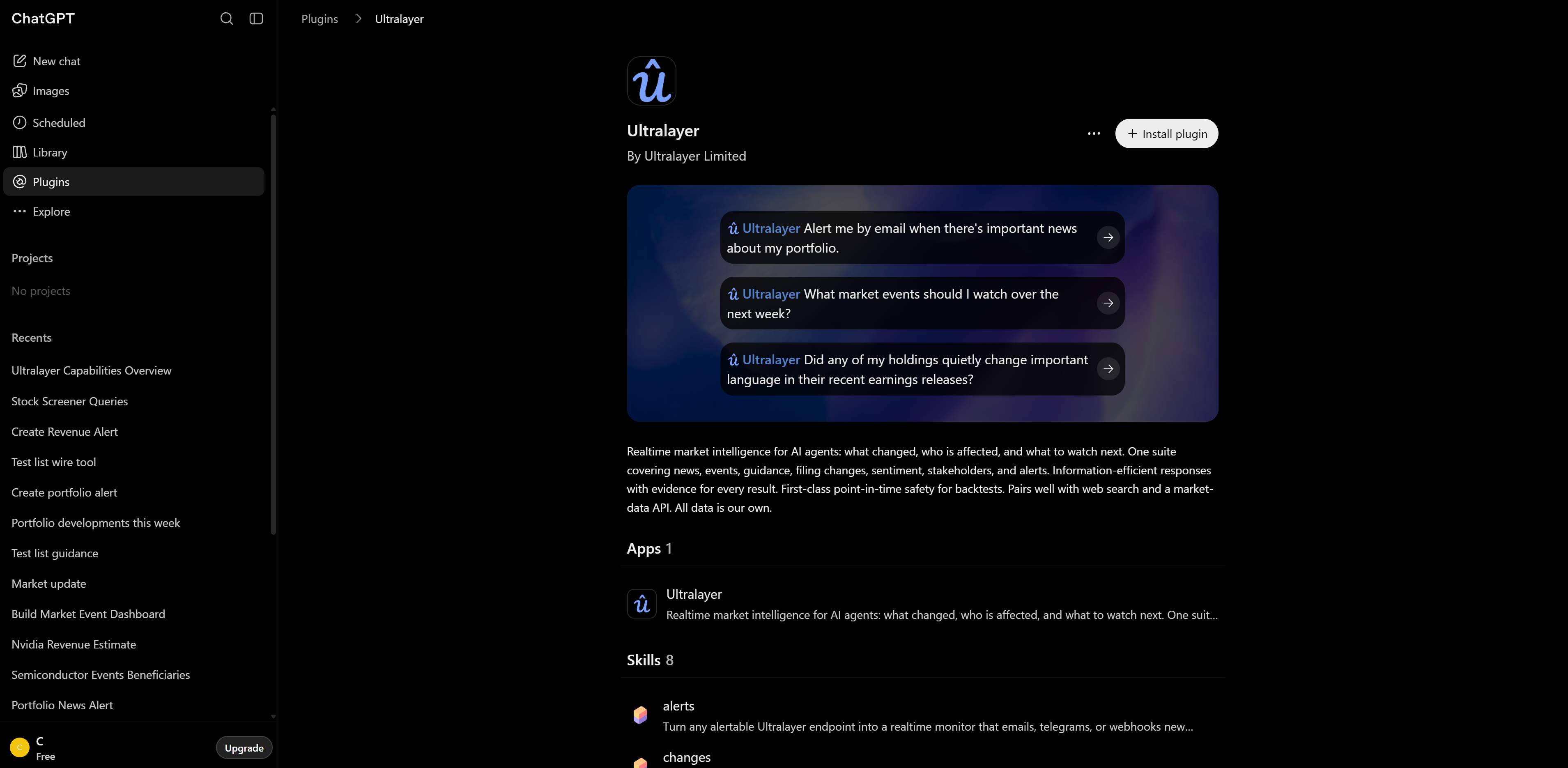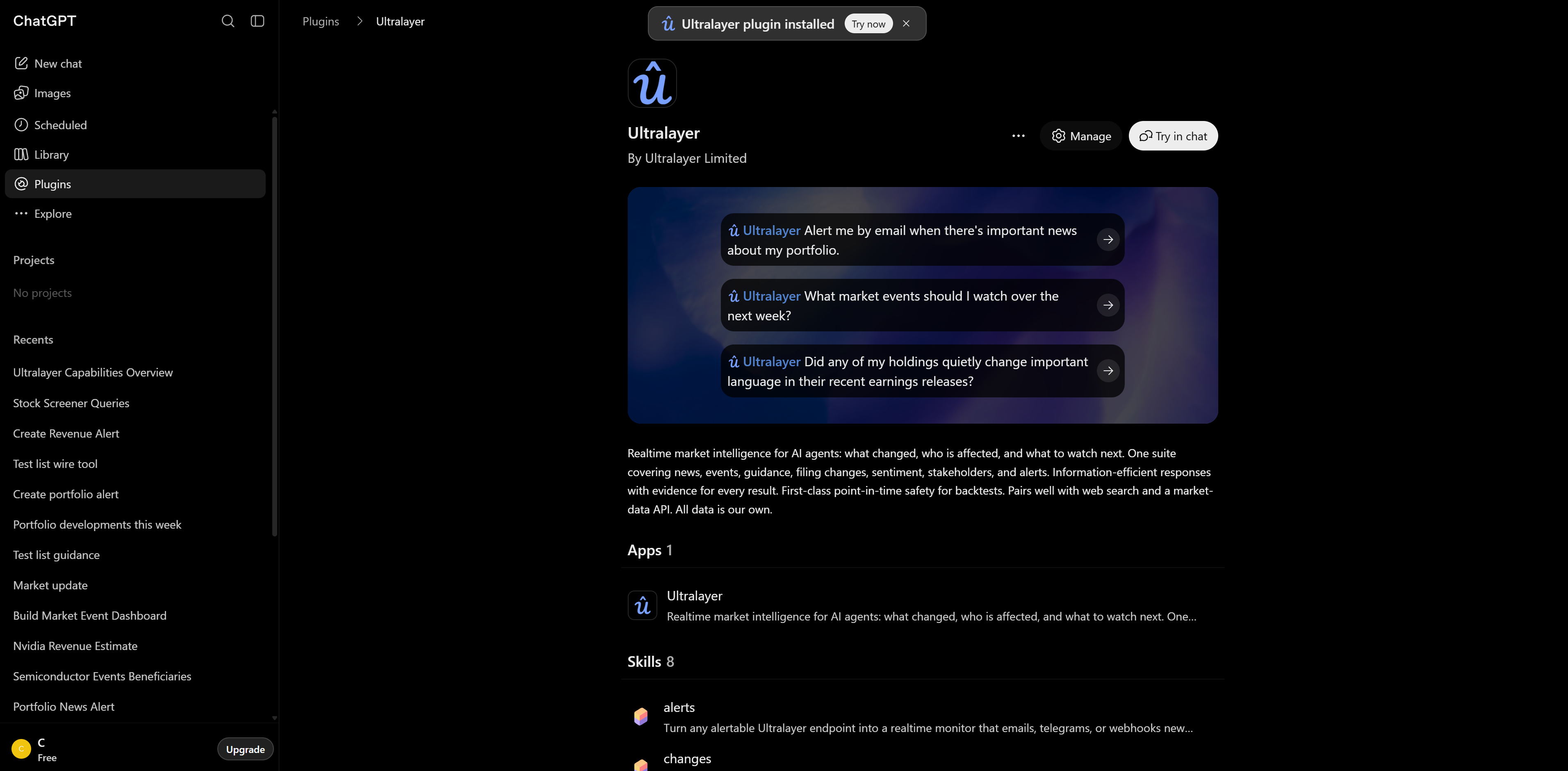
ChatGPT
Connect Ultralayer in ChatGPT so it can call Ultralayer tools — wire, search, developments, entities, guidance, filing changes, alerts, and more — from a normal chat.
Prefer a full plugin when your plan allows it
OpenAI’s Plugins in ChatGPT and Codex and Skills in ChatGPT docs describe plugins that can package skills with apps/connectors. Skills improve how the model uses Ultralayer tools — same reason we recommend the plugin over MCP-only on Claude, Cursor, and Codex.
Whether you can install a full plugin (for example from a repository / marketplace that includes skills) depends on your plan, workspace settings, and role. Personal Skills are generally for Business, Enterprise, Healthcare, and Edu — not Free / Go. The Plugin Directory may be visible on more plans than can actually install every kind of plugin.
If your ChatGPT plan can install plugins that include skills (repo / marketplace style), prefer that path and use:
Code
Reference fields and the general plugin-vs-MCP guidance are on MCP & Plugins. The Claude walkthrough is a close analogue: Claude.
If you only have developer-mode custom MCP (common on Free — MCP server URL, no skills package), follow the steps below. That still gives you the full Ultralayer tool surface; you just miss the bundled skills.
We do not rely on OpenAI’s public marketplace listing for Ultralayer: review can take months, and every update is re-reviewed. Custom / repo installs keep new Ultralayer capabilities available without that lag.
Prerequisites (developer-mode MCP path)
- An Ultralayer account. Sign up or sign in at console.ultralayer.ai.
- Stay signed in to the Ultralayer console in the same browser you use for ChatGPT (the console tab does not need to stay open). OAuth during setup can fail if Ultralayer session cookies are missing.
- Developer mode enabled in ChatGPT. Follow OpenAI’s guide: Developer mode. Developer mode unlocks custom MCP connections beyond the curated directory.
- OpenAI’s docs list developer mode for Pro, Plus, Business, Enterprise, and Education accounts. In practice it has also worked on Free — if your plan is Free, still try enabling it.
1. Create the Ultralayer MCP connection
In ChatGPT, open Plugins, then click + to add a plugin. Fill in the New Plugin modal:
| Field | Value |
|---|---|
| Icon (optional) | Open icon_144x144.png in a new tab, save the image, and upload it |
| Name | Ultralayer |
| Description (optional) | Real-time market intelligence |
| Connection | https://api.ultralayer.ai/v0/mcp |
| Authentication | OAuth |
Leave Advanced OAuth settings alone. Check the risk acknowledgment, then click Create.

2. Sign in and allow access
ChatGPT opens Add Ultralayer to ChatGPT. Click Sign in with Ultralayer.

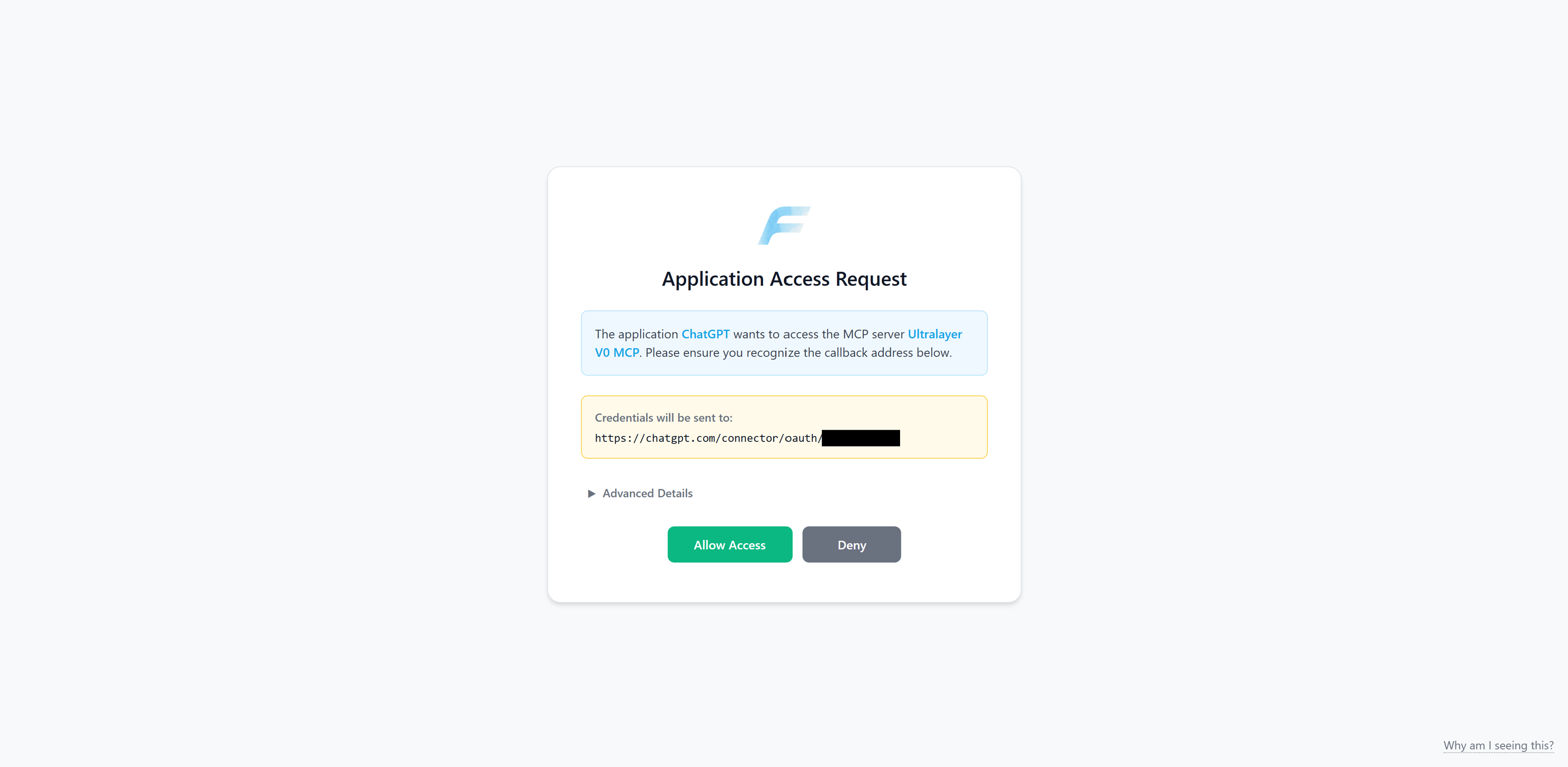
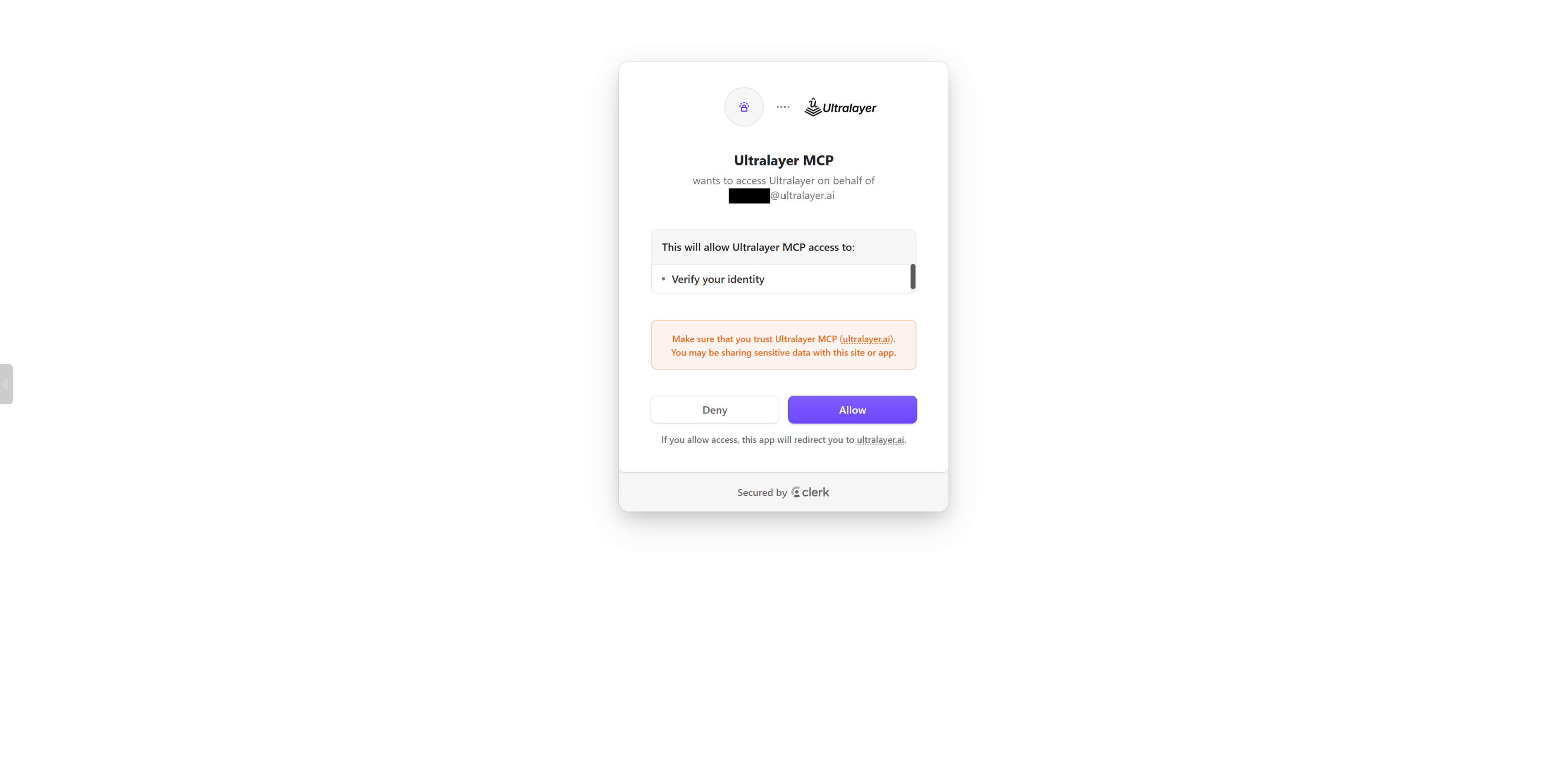
You will go through two consent screens:
api.ultralayer.ai— click Allow access.accounts.ultralayer.ai— click Allow.
3. Confirm the connection
When OAuth finishes, the plugin settings should show Connected to Ultralayer.

If actions are empty or the status looks incomplete, wait a short time and refresh — ChatGPT can take around a minute to finish verifying the connection.
4. Try it
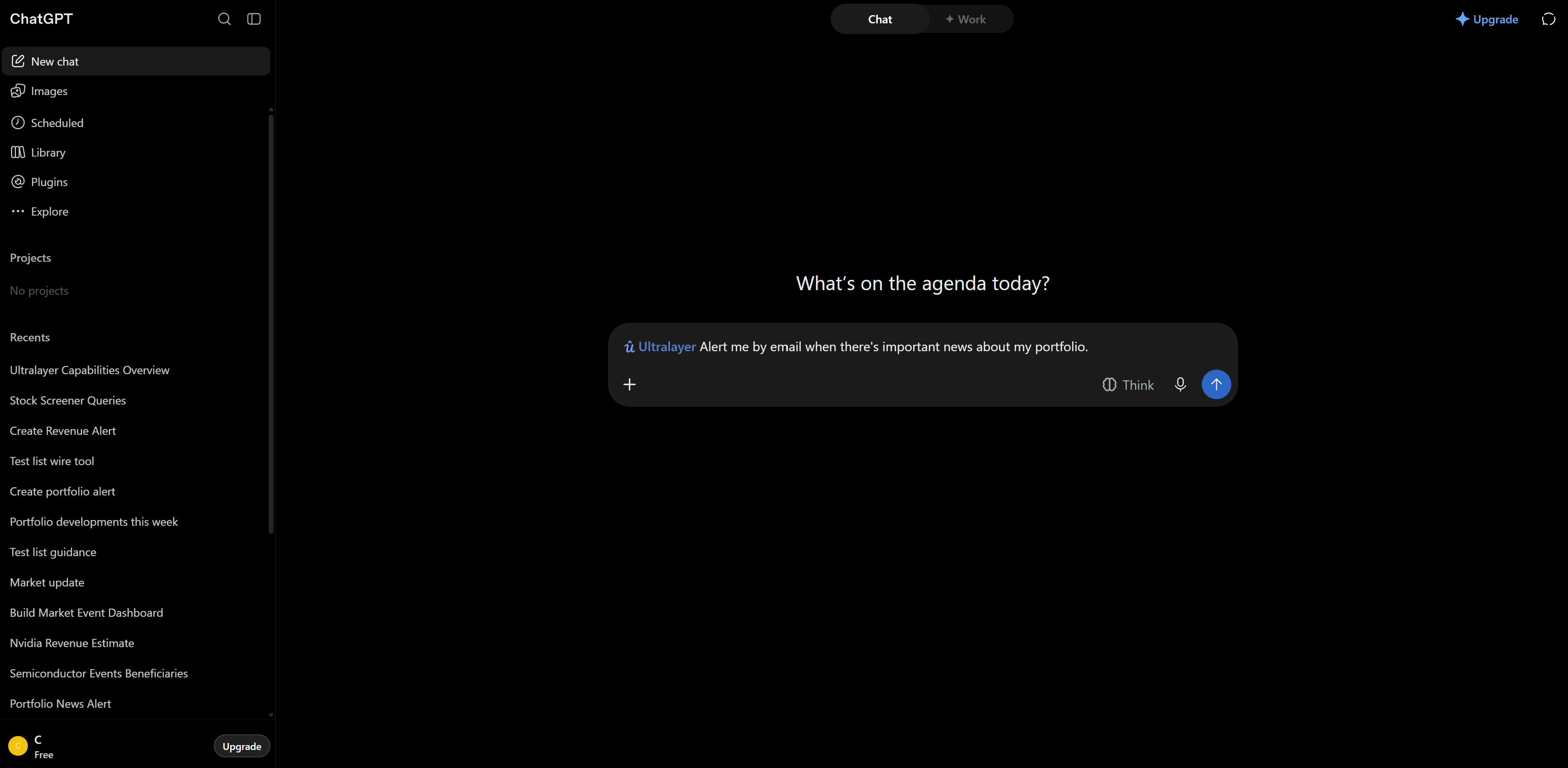
Open a new chat and ask something that needs market data. ChatGPT can pick Ultralayer tools from context, or you can force the plugin with @Ultralayer in the message.
Starter prompts:
What's moving markets right now? Focus on high-importance items only.
Brief me on Nvidia: recent headlines, sentiment over the last two weeks, and who co-moves with it in the news.
Alert me when there is important information about the healthcare sector

Troubleshooting
| Issue | What to try |
|---|---|
| OAuth fails / loops | Sign in at console.ultralayer.ai in the same browser, then retry Sign in with Ultralayer |
| No developer mode / can’t add custom plugins | Follow OpenAI’s developer mode guide. If your plan is Free, try enabling it anyway |
| Connected but no actions | Refresh the plugin page and wait ~60 seconds for ChatGPT to finish discovery |
| Tools never run in chat | Mention @Ultralayer explicitly, or ask a clearly financial question |
For other clients, see Claude or MCP & Plugins. For the shared connection overview, see the quickstart.