

MCP & Plugins
Most modern AI tools speak the same two standards: MCP (tools over a remote server) and plugins (MCP plus skills and related agent instructions, packaged together). Ultralayer supports both. This page is the generic playbook — use it for Cursor, Codex, Claude Code, VS Code, and anything else that can add a remote MCP server or install a plugin from a Git repository.
For step-by-step UI walkthroughs we already wrote, see ChatGPT and Claude.
Prefer the plugin when you can
If your host supports plugins (not only raw MCP), install the Ultralayer plugin. The plugin includes the MCP connection and agent skills — operational guidance that materially improves how the model uses Ultralayer tools. Connecting the MCP server alone works, but skills are what make agentic use reliable.
If the host only supports MCP, use the server URL below.
Prerequisites
- An Ultralayer account. Sign up or sign in at console.ultralayer.ai.
- Stay signed in to the Ultralayer console in the same browser you use for the client (the console tab does not need to stay open). OAuth can fail if Ultralayer session cookies are missing.
Reference values
Copy these into whatever “add plugin / add MCP / add connector” UI your host shows:
| Field | Value |
|---|---|
| Name | Ultralayer (or ultralayer) |
| Description (if asked) | Real-time market intelligence |
| Plugin repository | https://github.com/UltralayerHQ/ultralayer-plugin |
| MCP server URL | https://api.ultralayer.ai/v0/mcp |
| Authentication | OAuth (no API key) |
| Icon (if asked) | Open icon_144x144.png in a new tab, save, and upload |
Example remote MCP config (hosts vary slightly — some use url, some serverUrl, some nest under servers vs mcpServers):
Code
Leave advanced OAuth client ID / secret fields empty unless your host explicitly requires them. Ultralayer discovers OAuth from the MCP endpoint.
OAuth (same everywhere)
When you connect, the host opens a browser sign-in. Expect two consent screens:
api.ultralayer.ai— click Allow access.accounts.ultralayer.ai— click Allow.
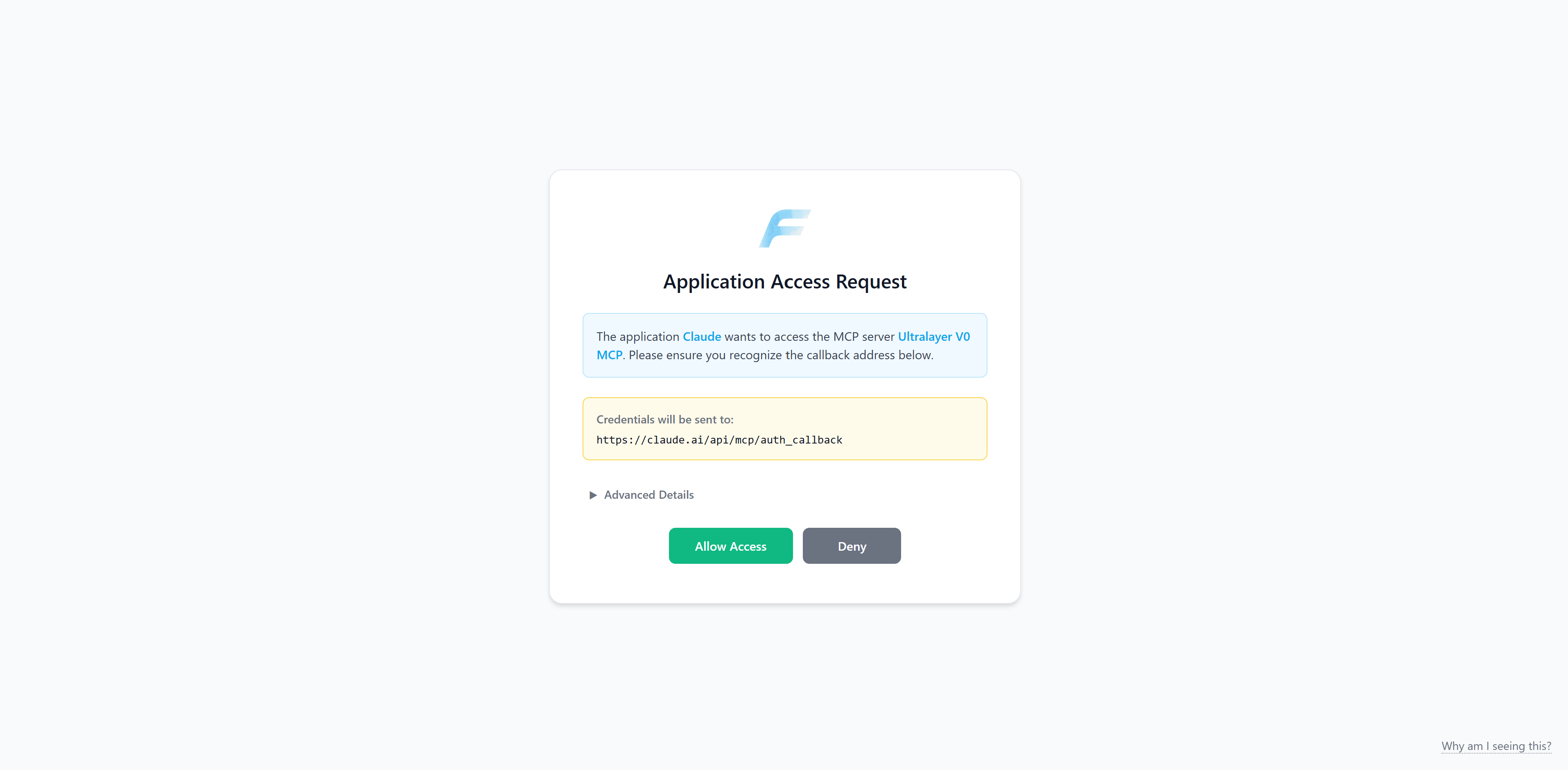
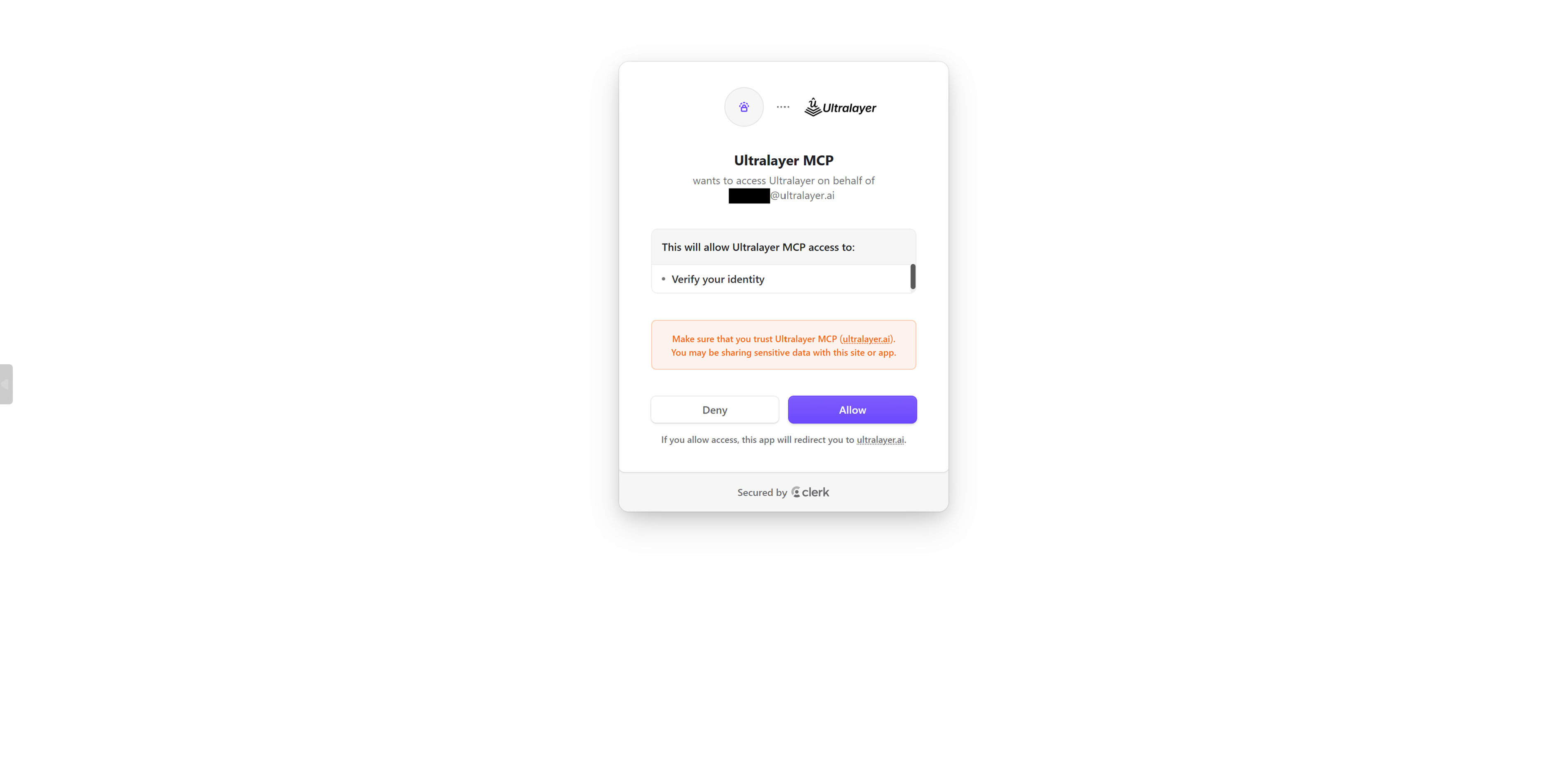
After both, the host should show the connector / MCP server as connected. Then open a chat and ask a market question — or use your host’s equivalent of @Ultralayer if it supports forcing a plugin.
Client docs
Use the reference values above, then follow the host’s own install UI. Prefer the plugin docs when the product supports plugins.
| Client | Prefer | Official docs |
|---|---|---|
| Claude (web / desktop) | Plugin + connector | Our guide: Claude |
| ChatGPT | Official plugin (includes MCP + skills) | Our guide: ChatGPT |
| Cursor | Plugin (includes MCP + skills); MCP alone also works | Plugins · MCP |
| Claude Code | Plugin marketplace; MCP alone also works | Plugins · MCP |
| Codex (CLI / desktop) | Plugin; MCP alone also works | Plugins · MCP |
| VS Code | MCP (agent plugins can bundle MCP servers) | Plugins · MCP |
Anything else that can add a remote HTTP MCP server or install a plugin from a Git repo uses the same reference values and OAuth flow.
Troubleshooting
| Issue | What to try |
|---|---|
| OAuth fails / loops | Sign in at console.ultralayer.ai in the same browser, then reconnect |
| Host only asks for a URL | Use https://api.ultralayer.ai/v0/mcp — that is enough for MCP-only clients |
| Connected but tools never run | Ask a clearly financial question, or invoke the plugin by name if the host supports it |
| Plugin vs MCP unclear | If the product has a Plugins / Marketplace path that accepts a GitHub repo, use that with https://github.com/UltralayerHQ/ultralayer-plugin |
API integrations (no chat host) → REST API. Shared overview → quickstart.